

How to Go Live on Instagram in 2026: Phone, Computer and With a Guest
How to go live on Instagram from your phone or computer, with up to 3 guests. Plus the 1,000-follower rule, teen limits, scheduling and replays.
 DumbSMM Team
On this page 12 sections
- How do you go live on Instagram?
- How many followers do you need to go live on Instagram?
- Why can't I go live on Instagram?
- How to go live on Instagram with someone
- How to go live on Instagram from a computer
- Phone vs computer: which should you use?
- How to schedule a Live on Instagram
- What happens when your Instagram Live ends?
- How long can an Instagram Live be?
- Can you make money from Instagram Live?
- Turn your Live into Reels afterwards (disclosure: this part is about us)
- How to go live on Instagram FAQ
- How do you go live on Instagram?
- How many followers do you need to go live on Instagram?
- Why can't I go live on Instagram?
- Can you go live on Instagram from a computer?
- How do you go live on Instagram with someone?
- How long can you go live on Instagram?
- Can you watch an Instagram Live after it ends?
Going live on Instagram takes about four taps. Being allowed to go live is the part that trips people up.
Until August 2025, anyone could start an Instagram Live. Now Instagram's help center says only public accounts with 1,000 or more followers can. So if you're staring at your camera screen and the Live option just isn't there, that's probably why, and most guides online haven't caught up.
This guide covers the current rules, the steps on a phone and on a computer, going live with a guest, scheduling, and what to do with the replay once you're done. Every step comes from Instagram's own help pages.
Checked on October 29, 2026. Instagram renames buttons now and then, so the exact labels on your screen may differ slightly.
How do you go live on Instagram?#
You go live on Instagram from the camera inside the app. Here are the steps from Instagram's help center, for iPhone and Android:
- Open the camera. Swipe right anywhere in Feed, or tap Create at the top of the screen.
- Pick Live. Scroll the modes at the bottom of the camera to Live.
- Add a title. Tap Add a title (on Android it says Title), type it and confirm. It's optional, but a title tells people what they're tuning in for.
- Tap Go live. You're on air, and Instagram notifies your followers.
- Talk to people. Tap Comment to write a comment, or tap any comment and choose Pin comment so everyone sees it.
- End it. Tap Close in the top right, then End now.
While you're live, the Options menu lets you turn off comments or turn off requests to join. Any keyword filters you already set for comments apply to your Live too.
Your followers see your profile picture at the top of their Feed with a colored ring and the word Live. They can watch in the app or on Instagram.com.
How many followers do you need to go live on Instagram?#
You need at least 1,000 followers and a public account. Instagram's help center puts it plainly: only users with a public account and 1,000 or more followers can start a Live video. The same rule applies on a phone and on a computer.
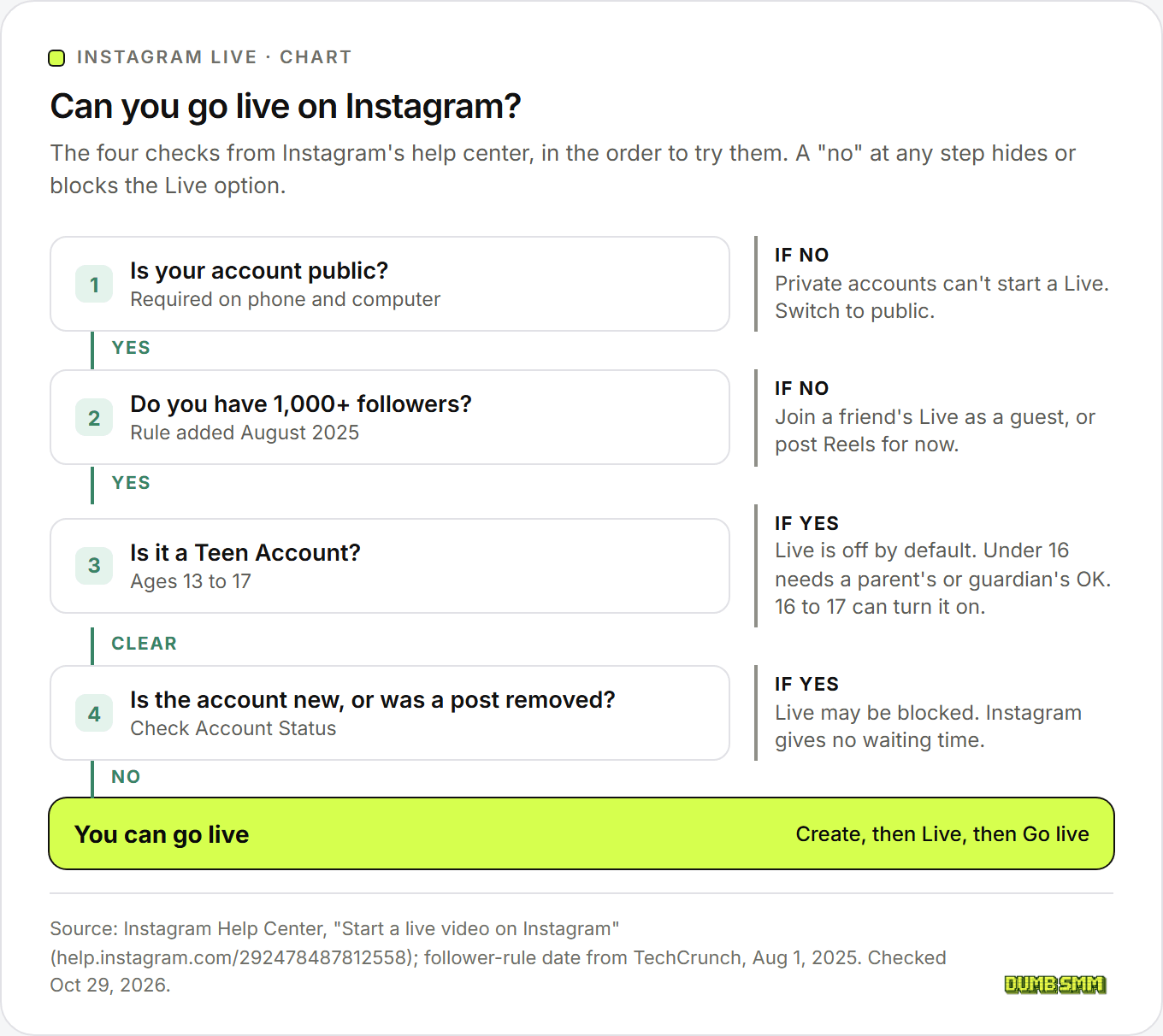
The rule is new. TechCrunch reported it on August 1, 2025: before that, anyone could go live, whatever their follower count. Accounts below the bar got a notice saying only public accounts with 1,000 or more followers could create live videos.
Two things the rule does not say:
- You don't need a professional account to go live. The help article on starting a Live only asks for public and 1,000 followers. Some third-party guides say desktop streaming needs a creator or business account, but Instagram's own page doesn't.
- It's about starting a Live, not joining one. Instagram's guest rules (below) only say a guest has to follow the host. They don't mention a follower minimum for guests.
Under 1,000? Ask to join a friend's Live as a guest, or record the video and post it as a Reel until you cross the line.
Why can't I go live on Instagram?#
Instagram's help center lists four reasons the Live option can be missing:
| Reason | What Instagram says | What you can do |
|---|---|---|
| Private account or under 1,000 followers | Only public accounts with 1,000+ followers can start a Live | Switch to public in Settings, or grow past 1,000 |
| Teen Account | Live is off by default for Teen Accounts. Under 16 needs a parent's or guardian's permission | 16 and 17 year olds can turn it on themselves. Under 16, a parent or guardian has to give permission |
| Removed content | You may lose Live if you posted something removed for going against the Community Standards | Check Account Status in the app for features you can't use |
| New account | Newly created accounts may not be able to go Live | Wait. Instagram doesn't say for how long |
To check your standing, go to your profile, open the menu, then More info and support and Account Status. It shows a list of features you can't use right now, per Instagram's Account Status help page.
If none of those apply, our advice is the boring one: update the app, and check that Instagram has camera and microphone permission on your phone.
How to go live on Instagram with someone#
You can invite up to 3 guests into your Live using a feature Instagram calls Live Rooms, so four people can be on screen at once. Per Instagram's guest help page, each guest has to follow you.
To invite someone:
- Open the camera and go to Live, as above.
- Open your room to see requests to join, and tap the add-people icon.
- Pick a follower and tap Invite.
To ask to join someone else's Live, open their Live and tap Send Request. If they accept, Instagram tells you you're about to join. The host can remove a guest any time by tapping the X on that guest's video.
You can also add one moderator per Live. Tap Options in the top right, then Add Moderator, and pick an account that's watching. Once they accept, the moderator can report comments, mute a viewer's comments, or remove a viewer from the Live. Instagram's moderator page says the moderator can't also be a guest.
Want an audience of only your inner circle? Instagram's Live tips post (July 22, 2024) says you can go live to your Close Friends list instead of all your followers, and Instagram notifies only the group you pick. That post also says host and guests must follow each other, a little stricter than the help page.
How to go live on Instagram from a computer#
You go live from a computer with Instagram Live Producer, which works with streaming software such as OBS. On a computer, Instagram.com hands you a stream URL and a key, and your streaming app sends the video. Steps from the help center's computer version:
- On Instagram.com, click Create, then Live video.
- Enter a title and choose an audience. Practice starts the stream for nobody but you. Public takes you live to your followers.
- Copy the stream URL and stream key that appear. The key changes every time you use Live Producer, so copy a fresh one each time.
- In your streaming software, choose Custom RTMP (sometimes called Custom server) and paste both.
- Start streaming in the software and check the preview in Live Producer.
- Click Go live in Live Producer.
- To finish, click End live video in Live Producer first, then stop the software. Stop the software first and your Live freezes on its last frame.
Use Practice mode once before your first real stream. It's free and nobody sees you test your mic.
Instagram's Live Producer announcement (November 2, 2022) recommends these settings:
| Setting | Recommended value |
|---|---|
| Resolution | 720 x 1280 (vertical, 9:16) |
| Frame rate | 30 fps (60 fps also works) |
| Video bitrate | 2,250 to 6,000 Kbps |
| Audio | 44.1 kHz, stereo, up to 256 Kbps |
| Example software | OBS, Streamlabs, StreamYard |
The same 2022 post said Live Producer didn't support guests (Live Rooms), moderators, Q&A, Shopping or Fundraisers. If you need a guest, go live from the phone app.
Phone vs computer: which should you use?#
| Instagram app (phone) | Instagram.com + Live Producer | |
|---|---|---|
| Setup | None | Streaming software (OBS is free) |
| Camera | Phone camera | Webcam, DSLR, screen share, overlays |
| Guests | Up to 3 | Not supported (per the 2022 post) |
| Moderator | 1 | Not supported (per the 2022 post) |
| Scheduling | Yes | No (scheduling is phone-only) |
| Best for | Chatting, Q&As, going live with friends | Tutorials, gaming, polished shows |
Short version: use the phone for anything social and the computer for anything that needs a screen share or a better camera.
How to schedule a Live on Instagram#
You can schedule an Instagram Live from 1 hour to 90 days ahead, but only in the app. Instagram's scheduling help page says it doesn't work on computers.
- Tap Create or swipe right from Feed, then pick Live.
- Tap Schedule on the left.
- Enter a title and pick the start time, then tap Done.
- Tap Schedule live video.
- Share the scheduled Live if you want. People can tap to set a reminder.
Instagram reminds you 24 hours and 15 minutes before the start time. Scheduling also needs a public account with 1,000 followers.
What happens when your Instagram Live ends?#
When you end a Live, Instagram offers two buttons: Share as reel and Download. Per the replay help page:
- Share as reel posts the replay to your profile and Feed as a reel, with a caption and tags. You can also share it later from your Live archive.
- Download saves the video to your camera roll.
- Likes and comments from the Live don't carry over, and the view count starts from zero.
- You can't edit or trim the replay before sharing it.
If you do neither, the Live goes to your archive, where Instagram's creator site says you can get it back for up to 30 days. To find it: profile, menu, Archive, then switch the dropdown at the top to Live archive.
How long can an Instagram Live be?#
Up to 4 hours, going by the last limit Instagram announced. Instagram raised the limit from 1 hour to 4 hours in October 2020, as TechCrunch reported. Instagram's current help pages don't state a maximum, so treat 4 hours as the last published limit, not a promise.
Can you make money from Instagram Live?#
Yes, through Live badges, if you're 18 or older with at least 10,000 followers. Viewers buy badges during your Live. Instagram's badges page also asks for a professional (creator or business) account and compliance with its monetization policies. Instagram says its own revenue share is currently 0%, while Apple and Google take 30% on in-app purchases, and one supporter can pay at most $250 per Live.
Turn your Live into Reels afterwards (disclosure: this part is about us)#
We built DumbSMM, so take this section with that in mind.
An hour-long replay is a big ask for anyone who missed the Live. A 30-second highlight isn't. Tap Download when your Live ends, then upload the file to the free clip maker, which turns an uploaded video into captioned vertical clips for Reels, TikTok and Shorts, with no watermark and no account needed. Post the clips over the next week with the social media scheduler, which auto-posts to Instagram Reels, TikTok and YouTube Shorts from one calendar.
What DumbSMM doesn't do: it can't stream, so it won't take you live. For that, Instagram's own app is free, and OBS is a free, open-source streaming app for the computer route. If you want to stream to Instagram, YouTube and Twitch at once, a multistreaming service like Restream or StreamYard is the right tool, not us. And if you only want the full replay on your profile, Instagram's Share as reel button does that for free in one tap.
How to go live on Instagram FAQ#
How do you go live on Instagram?#
Open the Instagram app, swipe right from Feed or tap Create, and scroll to Live at the bottom of the camera. Add a title if you want, then tap Go live. To end it, tap Close and then End now.
How many followers do you need to go live on Instagram?#
You need at least 1,000 followers and a public account. Instagram added this rule in August 2025. Before that, anyone could go live. To join someone else's Live as a guest, Instagram only asks that you follow the host.
Why can't I go live on Instagram?#
The most common reason is the 1,000-follower rule, or a private account. Instagram also blocks Live by default for Teen Accounts, for some brand-new accounts, and for accounts that posted content removed for breaking the Community Standards. Check Account Status in the app to see any restrictions.
Can you go live on Instagram from a computer?#
Yes. On Instagram.com, click Create, then Live video, and use the stream URL and key in streaming software like OBS. You still need a public account with 1,000 followers. Guests and moderators weren't supported on the computer route as of Instagram's 2022 announcement.
How do you go live on Instagram with someone?#
Start your Live in the app, open your room, tap the add-people icon and invite a follower. You can have up to 3 guests at once, and each one has to follow you. Viewers can also ask to join by tapping Send Request.
How long can you go live on Instagram?#
The last limit Instagram announced was 4 hours, set in October 2020. Instagram's current help pages don't list a maximum. For a longer show, plan a break and start a second Live.
Can you watch an Instagram Live after it ends?#
Only if the host shares it. Hosts can post the replay as a reel or download it. Otherwise it sits in the host's Live archive for up to 30 days, where only the host can see it.
Sources:
- Instagram Help Center: Start a live video on Instagram
- Instagram Help Center: Go live with others (Live Rooms)
- Instagram Help Center: Schedule a live video
- Instagram Help Center: Share or download a live video replay
- Instagram Help Center: Add a moderator to a live video
- Instagram Help Center: Live badges eligibility
- Instagram Help Center: Account Status
- Instagram for Creators: Live
- Instagram: Instagram Live Producer (Nov 2, 2022)
- Meta: Teen Accounts update (Apr 10, 2025)
- TechCrunch: Instagram now requires 1,000 followers to go live (Aug 1, 2025)
- TechCrunch: Instagram extends live streams to 4 hours (Oct 27, 2020)
All checked October 29, 2026. Instagram is a trademark of Meta Platforms, Inc. DumbSMM is not affiliated with or endorsed by Meta.